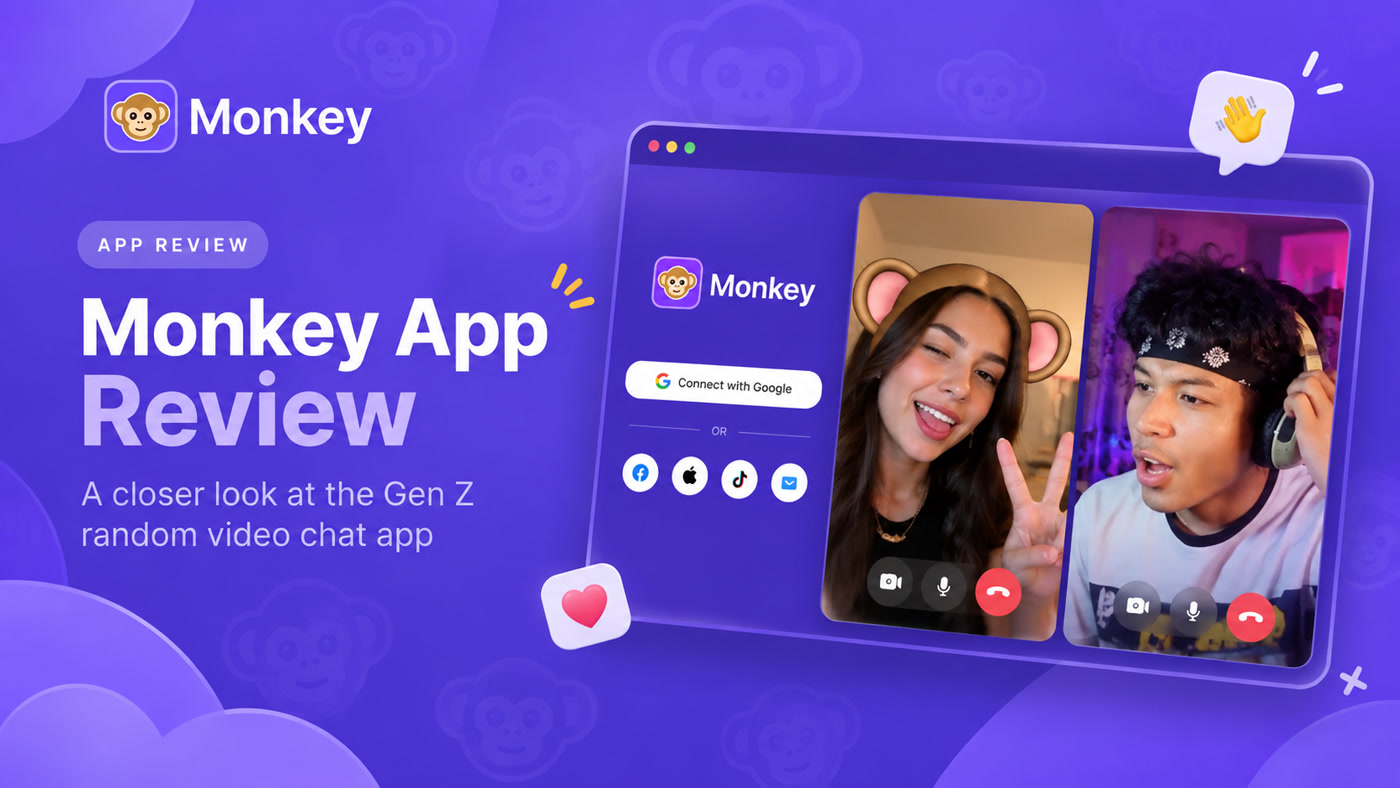
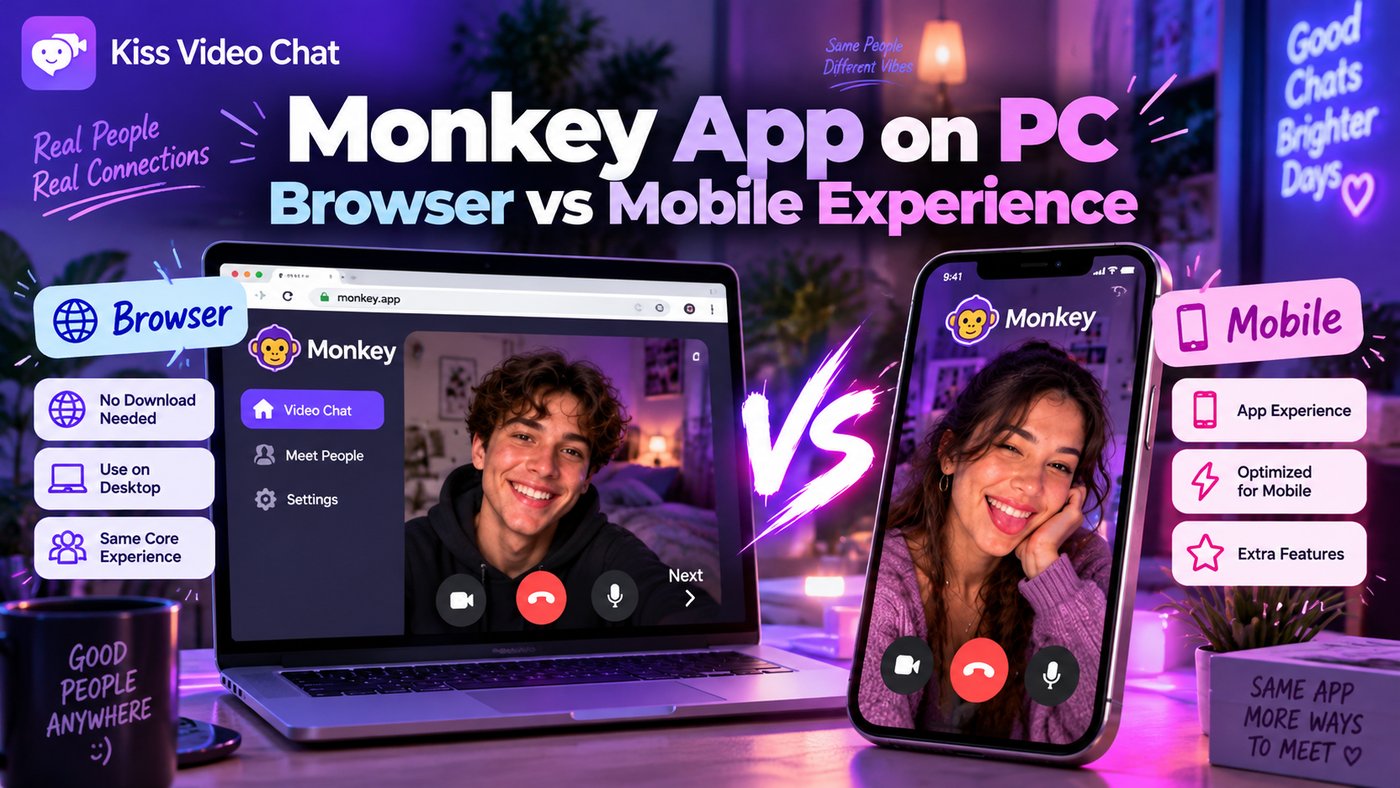
Want to use Monkey on a laptop or desktop instead of your phone? You don't need an emulator or a downloaded "Monkey for PC" file. Monkey runs a web version that works in a desktop browser, and the official site points iPhone and desktop users there. This guide explains how to start Monkey on a PC, how the browser version compares with the Android app, how to set up your camera and microphone, and what to do when something doesn't work. We checked Monkey's official website, its Safety Center and its Google Play listing on October 13, 2026.
Short answer: can you use Monkey on PC?
- Yes, in your browser. Monkey's FAQ says that for iOS and desktop users, its web version offers live video chat directly through the browser. Android users can download the app.
- No install needed. Open monkey.app in Chrome, Edge, Firefox or Safari, sign in and allow camera and microphone access.
- An account is required. Monkey says it uses a "1-tap social login" to keep bots out.
- Skip emulators and .exe files. There's no official Windows or Mac download, so a "Monkey for PC" installer from another site isn't from Monkey.
Monkey on PC vs phone: what each route offers
| Device (checked Oct 13, 2026) | How you use Monkey | Notes |
|---|---|---|
| Windows PC or Mac | Web version in a desktop browser | Official route per Monkey's FAQ; no desktop app |
| iPhone / iPad | Web version in Safari or another browser | Monkey's FAQ points iOS users to the web; we found no current App Store listing |
| Android | App from Google Play, or the browser | Play listing updated Sep 23, 2026; rated Mature 17+, in-app purchases |
The Google Play app describes more than random video: personalized profiles with a mood and profile song, "Cards" you swipe to add friends, video chat, Squad Chat for group video with friends, and text DMs. Monkey doesn't publish a feature-by-feature list for the web version, so some of these may look different or be missing in a browser. Check on the device you actually use.
How to use Monkey on a PC, step by step
- Type monkey.app into your browser's address bar yourself rather than clicking ads or download buttons on other sites.
- Click Start and sign in with the social login Monkey offers.
- When the browser asks, allow camera and microphone access for monkey.app (not for any other domain).
- Check your preview: face visible, good light in front of you, nothing personal in the background.
- Start matching. Use the report icon during a match if someone breaks the rules, or report later from your match history.
- When you're done, sign out, especially on a shared or work computer.
Browser on PC vs app on phone: the real differences
A PC gives you a bigger screen, a camera that stays still, a keyboard for text chat and no battery worries during long sessions. Wired internet is usually more stable than mobile data, which helps video quality. A phone gives you convenience and, on Android, the full app with Cards, Squad Chat and notifications. The trade-off on a laptop is privacy: a wide webcam shows more of your room, so check what's behind you before you connect. Headphones also help: they make the audio clearer and keep others in the room from hearing the conversation. If you also use other platforms on both devices, our guides to Azar web vs mobile app and CooMeet browser vs app show how other services split features between web and app.
Troubleshooting Monkey on desktop
- Camera shows black or "not found": close other apps that use the camera (Zoom, Teams, OBS), then reload the page. On Windows, check Settings → Privacy → Camera; on a Mac, check System Settings → Privacy & Security → Camera for your browser.
- The browser never asked for permission: click the camera or lock icon in the address bar and set camera and microphone to Allow for monkey.app.
- The wrong mic or webcam is used: choose the right device in the browser's site settings or your system's sound settings.
- Video lags or freezes: close heavy tabs, move closer to your router or use a cable, and try another browser.
- Login fails: allow pop-ups for monkey.app, since social logins often open a separate window, and turn off extensions that block scripts.
- Video access restricted: Monkey's Safety Center says accounts that break content rules in public spaces have video chat restricted while they're reviewed. Contact Monkey support through its site.
Safety on Monkey, on any device
Monkey's Safety Center says the platform is strictly 18+, that AI systems flag suspected underage accounts and explicit content in real time, and that confirmed underage accounts are permanently banned. It also lets you unfriend or block anyone from your chats. These are Monkey's own descriptions of its system. Google Play's data safety section, written by the developer, says the Android app may collect location and personal info and states "Data isn't encrypted," so be careful what you share. Some Google Play reviewers in 2026 also complained about paid features and ads, so read the terms on your screen before buying anything. For general habits, see is random video chat safe?
- Don't show documents, mail or screens with your name in the background.
- Never share your address, workplace, school or financial details.
- Assume the other person can record their screen.
- Leave and report anyone who seems underage or who pressures you to move to another app.
A different approach: choose who you call
Monkey is built around instant, random matching. If you'd rather decide who to talk to first, Kiss Live Chat works differently: you see who's online, check their language and interests, and start a one-on-one video call with someone you chose. It also has live rooms, Reels, games and chats, with block and report tools. For more random-chat options, see our Omegle alternative page or our list of apps like Omegle.
Prefer to pick instead of skip? Get Kiss Live Chat and see who's online first.
Conclusion: use Monkey's web version on PC
You can use Monkey on a PC through its official web version: open monkey.app, sign in, allow your camera and mic, and start. There's no desktop app, so avoid emulators and third-party installers. A computer gives you a steadier picture and a keyboard, while the Android app has the fullest feature set. Set up your camera with privacy in mind, and if you'd rather browse people before calling, try Kiss Live Chat.

Add Kiss to your home screen
No download needed: the Kiss web app opens full-screen from an icon, like an app.
- Android · Chrome: ⋮ menu → “Install app” or “Add to Home screen”
- iPhone · Safari: Share → “Add to Home Screen”
Prefer the app? Get the iPhone app
A few more answers
Frequently asked questions
Is there a Monkey app for Windows or Mac?
No. Monkey doesn't offer a desktop download. Its FAQ says desktop and iOS users use the web version in a browser, while Android users can download the app from Google Play.
Do I need an Android emulator to use Monkey on PC?
No. The official route on a computer is the browser at monkey.app. Avoid emulators and 'Monkey for PC' installers from other sites, which aren't from Monkey.
Do I need an account to use Monkey in a browser?
Yes. Monkey says it uses a 1-tap social login before you start, which it describes as a way to keep bots out.
Why isn't my webcam working on Monkey?
Usually another app is using the camera or the browser hasn't been allowed access. Close Zoom or Teams, allow camera and mic for monkey.app in the address bar, check your system's camera privacy settings and reload.
Is Monkey's web version the same as the Android app?
Not necessarily. The Android app lists profiles, Cards, Squad Chat and text DMs, and Monkey doesn't publish a feature list for the web version. Check what's available on your own device.