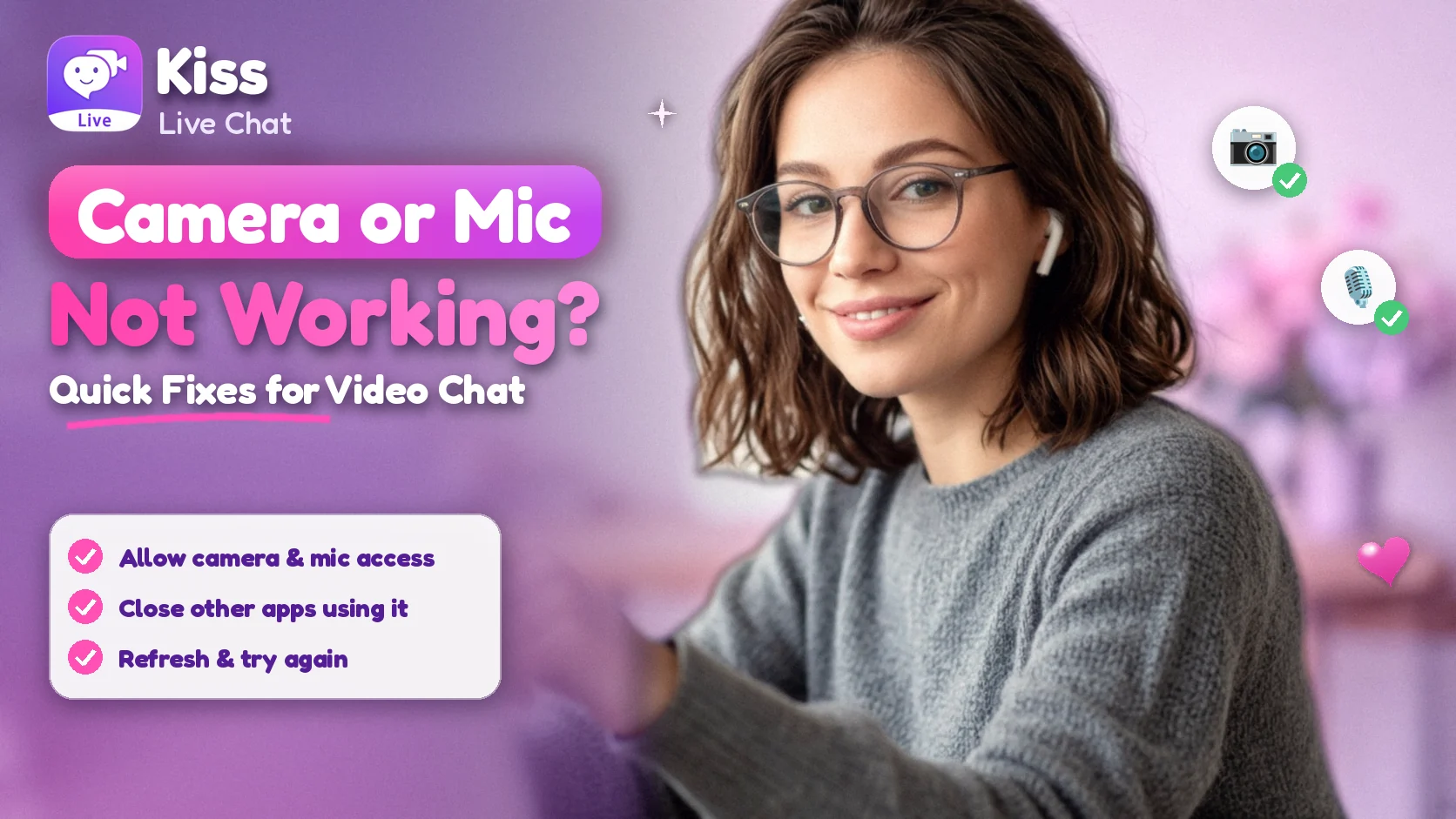
You click to start a video chat and get a black box, a frozen preview or silence. Nearly every time, the cause is one of four things: the site or app was never given permission, the operating system is blocking access, another app is holding the camera, or the hardware itself is off or disconnected. This guide goes through them in that order for Chrome, Safari, Firefox, iPhone, Android, Mac and Windows. It uses only the official settings paths from each vendor, checked on October 23, 2026.
Quick checklist (try these first)
- Reload the page or reopen the app, then choose Allow when it asks for the camera and microphone.
- Check the site's permission in your browser (the icon to the left of the address).
- Check your device's privacy settings, which can block the browser or app entirely.
- Close other apps that use the camera, such as Zoom, Teams, FaceTime or another browser tab.
- Check the hardware: a laptop camera shutter or switch, a plugged-in headset, the mute button on your mic.
- Restart the browser, then the device.
Fix camera and mic permissions in your browser
Browsers ask once per site. If you clicked Block, or closed the prompt, the site stays blocked until you change it.
Google Chrome (computer)
- Open Chrome's Settings > Privacy and security > Site settings, then Camera or Microphone.
- Pick the right device from the drop-down if you have more than one camera or mic.
- Make sure the site isn't in the "Not allowed" list. If it is, remove it or switch it to Allow.
Google's help page adds that you should also check your computer's own privacy settings and, if it still fails, restart the call, then Chrome, then the computer (Chrome Help).
Chrome on Android
Tap More (⋮) > Settings > Site settings, then Camera or Microphone, and make sure the site isn't blocked (Chrome Help, Android).
Safari on Mac
Go to Safari > Settings > Websites, choose Camera or Microphone in the sidebar, and set the site to Allow or Ask instead of Deny (Safari User Guide).
Firefox
Click the permissions or lock icon next to the address, clear the blocked camera or microphone permission, reload the page, and choose Allow when asked. For all sites, open Settings > Privacy & Security and scroll to the Camera and Microphone settings (step-by-step guide).
iPhone and iPad: app and Safari settings
If you use an app
Open Settings > Privacy & Security > Camera, find the app and turn it on. Do the same under Microphone (iPhone User Guide). iOS shows a green dot at the top of the screen when an app is using the camera and an orange dot when only the microphone is in use. This is a quick way to check whether something else is already using them.
If you use Safari
Go to Settings > Apps > Safari and check Camera and Microphone. Ask or Allow will work; Deny blocks every site. You can also change settings for a single site from that site's page menu under Website Settings (iPhone User Guide).
Phone-specific tips on portrait video, battery and app-versus-browser are in our random video chat on mobile guide.
Android: app permissions and privacy controls
- Per app: open Settings > Apps, pick the app (tap See all apps if needed), then Permissions, and set Camera and Microphone to allow.
- By permission: Settings > Security & privacy > Privacy > Permission manager lists every app that has camera or mic access.
- Device-wide switches: Settings > Security & privacy > Privacy > Privacy controls has Camera access and Microphone access switches. If either is off, no app can use it.
These are Google's paths (Android Help). Samsung and other brands may use slightly different menu names.
Mac and Windows: system privacy settings
Even when the browser allows the site, the operating system can still block the browser itself.
macOS
Open System Settings > Privacy & Security > Camera and turn on access for your browser or app, then do the same under Microphone. A green light next to the Mac's built-in camera shows that the camera is on (Mac User Guide).
Windows
Open Settings > Privacy & security > Camera and make sure camera access is on. Browsers count as desktop apps, so "Let desktop apps access your camera" must be on too. Check the Microphone page the same way (Microsoft Support).
Close other apps that might be using the camera
If Zoom, Teams, Skype, FaceTime, OBS or another browser tab already has it, your video chat may show a black frame or an error. Windows even has a specific error for this, 0xA00F4243, "Another app or process is using the camera" (Microsoft Support). Microsoft's Teams help gives the same advice: close other apps that might be using the camera (Teams Support).
- Quit video-calling apps completely. Closing the window isn't always enough.
- Close other tabs that have used the camera recently.
- On a phone, close recent apps that use the camera, such as other calling apps or the Camera app.
Hardware checks and restarts
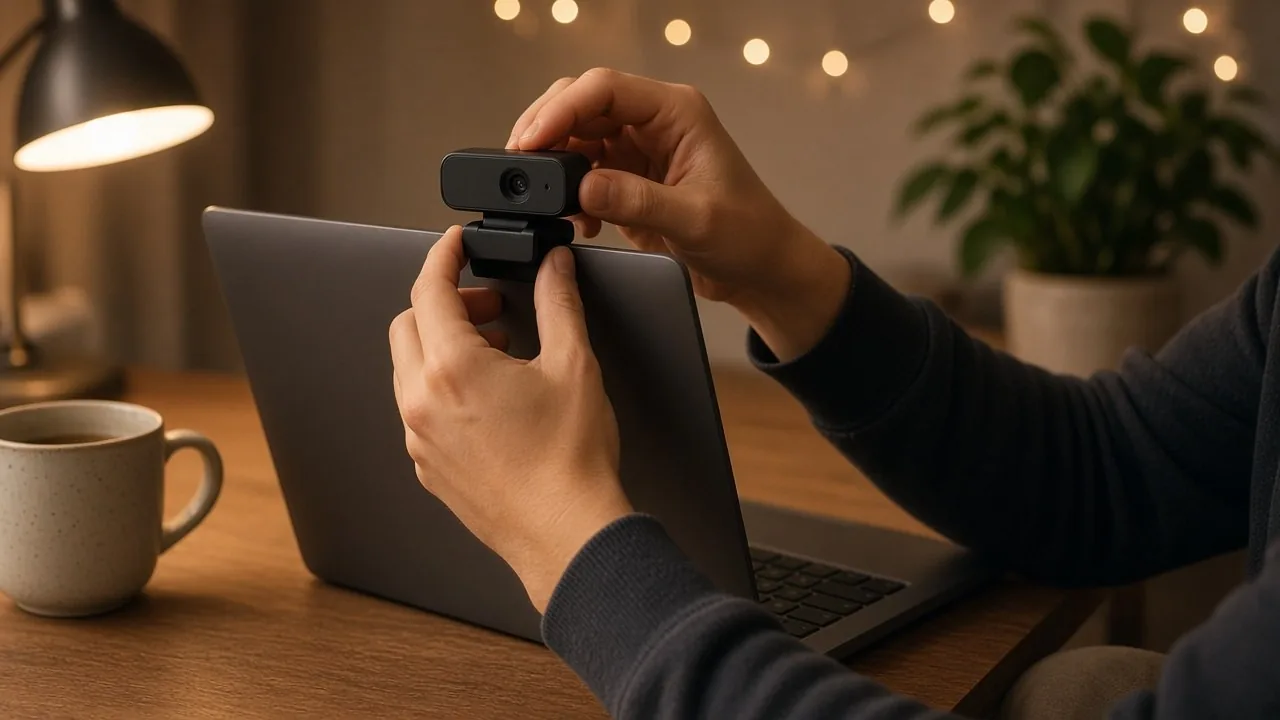
- Shutter or switch: many laptops have a sliding privacy cover or a camera key. Microsoft's camera troubleshooting page lists this.
- Headsets and Bluetooth: if a headset is connected, your sound may go to it, or its mic may be muted. Disconnect it and test the built-in mic.
- Right device selected: with external webcams or USB mics, choose the right one in the browser's camera or microphone setting.
- Updates: install pending system and browser updates, then restart. Microsoft suggests checking for updates, and both Microsoft and Google suggest a restart.
Still not working?
Test the camera in another app, such as the built-in Camera app or Photo Booth. If it fails there too, the problem is the device or its driver, not the chat site. If it works elsewhere but not in your browser, try a second browser. That tells you whether the problem is one browser's settings. On a phone, try the app instead of the browser, or the other way round. Our browser-based video chat guide explains how the two compare.
Once your camera and mic work, start a chat on Kiss Live Chat in your browser, or get the Kiss app. Video Match pairs you with someone new, and filters by language and country help you find people you can talk to.
Conclusion
When the camera or mic fails in video chat, work from the outside in: site permission, then device privacy settings, then other apps holding the camera, then hardware and restarts. Most problems are fixed at the first two steps. Keep this page handy for the next time the preview goes black, and see how random video chat works if you're new to it.

Add Kiss to your home screen
No download needed: the Kiss web app opens full-screen from an icon, like an app.
- Android · Chrome: ⋮ menu → “Install app” or “Add to Home screen”
- iPhone · Safari: Share → “Add to Home Screen”
Prefer the app? Get the iPhone app
A few more answers
Frequently asked questions
Why does my camera show a black screen in video chat?
The most common causes are a blocked site or app permission, an operating system privacy setting that blocks the browser, or another app (such as Zoom or Teams) already using the camera. Check them in that order, then check for a lens shutter or camera switch.
How do I allow camera access in Chrome?
Open Chrome Settings > Privacy and security > Site settings > Camera (and Microphone), make sure the site is not in the Not allowed list, and select the right device. On Android, tap More > Settings > Site settings.
How do I turn on the camera for an app on iPhone?
Go to Settings > Privacy & Security > Camera and turn the app on, then do the same under Microphone. For websites in Safari, check Settings > Apps > Safari > Camera and Microphone.
Can another app block my camera?
Yes. If another app or browser tab is using the camera, your video chat may not get it. Windows shows error 0xA00F4243 in this case. Quit other video apps completely and try again.
My microphone works elsewhere but not in video chat. What should I check?
Check the site's microphone permission in your browser, make sure the right input device is selected, and disconnect Bluetooth headsets that may be muted or capturing the audio. Then restart the browser.